
Add a connection
Tracelake supports connections to multiple sources and as such, doesn’t differentiate between SAP and data warehouse connections.
Tracelake requires at least two connections to function. Usually that is:
- SAP connection to your SAP system
- Warehouse connection to your data warehouse
Adding a New Connection
Section titled “Adding a New Connection”To add a connection, go to the Connections page and click on the New Connection button.
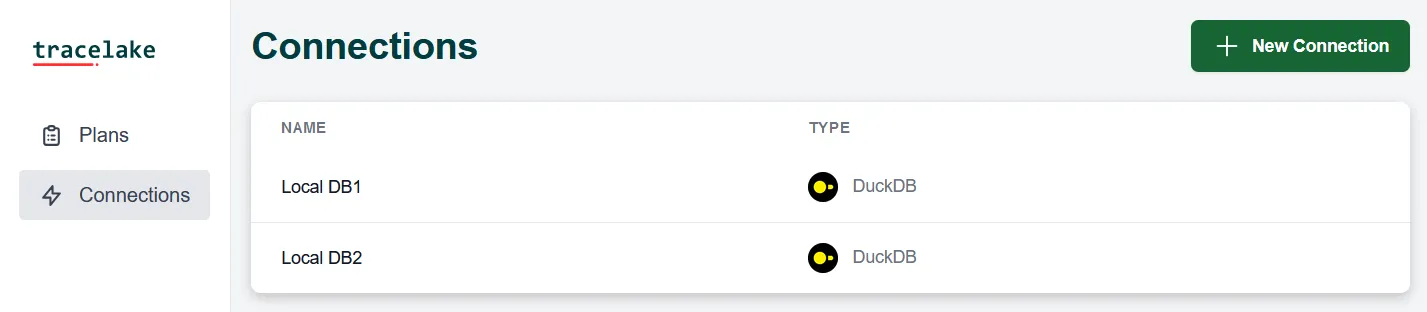
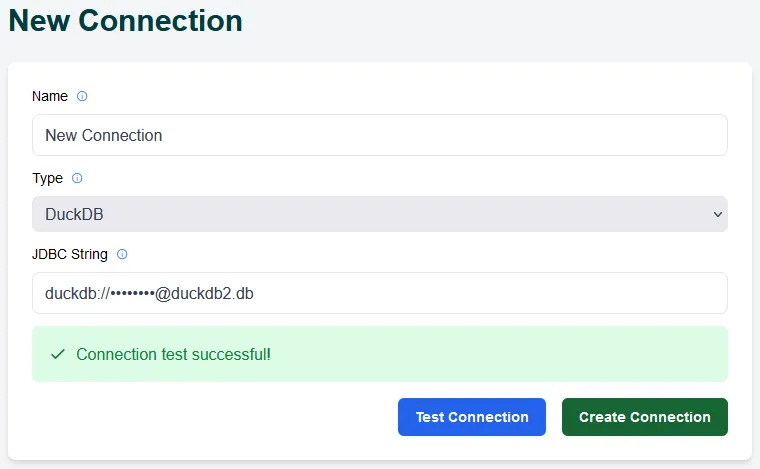
After clicking on New Connection button, you’ll see a form where you need to:
-
Select a Connection Type: Choose the type of database you want to connect to (e.g., SAP HANA, Snowflake, PostgreSQL)
-
Fill in Connection Parameters: The form will dynamically load the required parameters for your selected database type. Each database requires different information:
- Authentication: Username and password (or alternative methods like API tokens or key files)
- Server Details: Hostname or IP address, port number
- Database/Schema: The specific database or schema you want to access
- Additional Parameters: Database-specific settings (vary by type)
-
Test the Connection: Click the “Test Connection” button to verify that Tracelake can connect to your database with the provided parameters
-
Save the Connection: Once the connection test succeeds, click “Create Connection” to save it
Next Steps
Section titled “Next Steps”After adding your connections, you can:
- Test them to ensure they’re working correctly
- Create validation plans that use these connections
- Run validations between your source and target databases
For detailed information on the specific parameters required for each database type, please refer to the connections guide.